Cannot open a WSL web app from Windows? Check localhost and the listening port
- Published: 2026.10.19
- Updated: 2026.10.16
- Infrastructure Windows
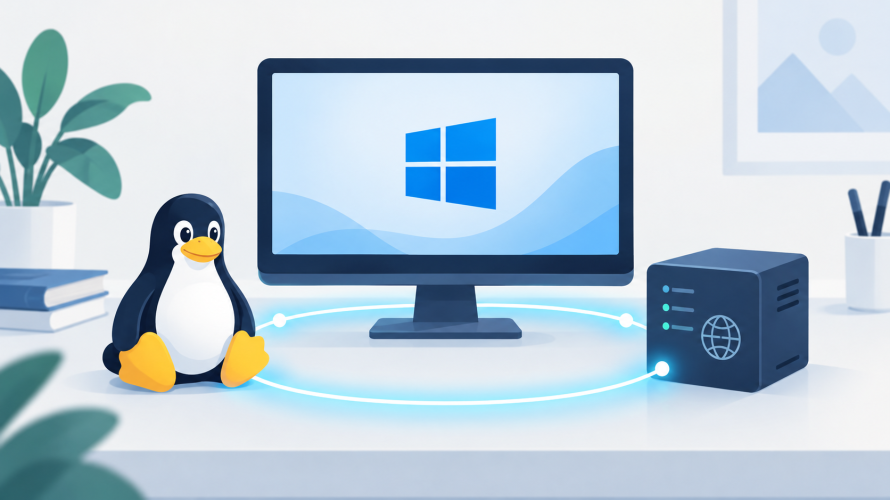
A web app starts inside WSL, but the page will not open in your Windows browser. Before reinstalling anything, checking the running distribution, the listening port, and the connection from Windows can help narrow down the cause.
The steps below use a small HTTP server to check access from Windows to WSL 2 on the same PC. You need Python 3.7 or later, curl, and ss inside Linux. The Python server is for local checks; serve only the temporary folder created for this example.
Check the running distribution and URL
In PowerShell on Windows, display the WSL package version and registered distributions.
wsl --version
wsl --list --verbose
If you have several Ubuntu installations, check which one is running your app. Compare the port in the app’s startup log with the port in the browser URL. This example uses http://127.0.0.1:8765/. The protocol matters too: an HTTP server will not provide an HTTPS page just because you change the URL to HTTPS.
Start a test server inside Linux
In a WSL Linux terminal, check that the required commands are available. If a command returns no path, install the relevant tool using your distribution’s instructions before continuing.
command -v python3
command -v curl
command -v ss
Run the following in the same terminal. It creates a dedicated temporary folder and puts one test page inside it.
demo_dir=$(mktemp -d)
printf '%s\n' 'WSL localhost demo' > "$demo_dir/index.html"
python3 -m http.server 8765 --bind 127.0.0.1 --directory "$demo_dir"
Leave this terminal open while the server runs. The explicit bind address limits its listener to 127.0.0.1. If port 8765 is already in use, choose an available port and use that same number in every URL and check below.
Check the response in another Linux terminal
Open another terminal in the same distribution and first check whether Linux can retrieve the page.
curl --noproxy '*' --max-time 5 http://127.0.0.1:8765/WSL localhost demoThis response shows that the HTTP server answers inside Linux. --noproxy makes this curl request connect directly without a proxy. It does not change system-wide or organization-wide proxy settings.
If the request fails, inspect the listening port as well.
ss -ltn '( sport = :8765 )'When the server is running, look for a LISTEN row with 127.0.0.1:8765. If there is no matching row, return to the server terminal and check whether startup failed or the process stopped. Establishing this first gives you a clearer starting point before changing browser or Windows settings.
Check the TCP connection from Windows
Once Linux can retrieve the page, run this in PowerShell on Windows.
Test-NetConnection -ComputerName 127.0.0.1 -Port 8765 |
    Select-Object ComputerName, RemotePort, TcpTestSucceeded
A TcpTestSucceeded value of True means a TCP connection to that port succeeded. It does not establish that the web page or application works correctly; the next request checks the HTTP response.
Check HTTP and open the page in a browser
(Invoke-WebRequest -Uri 'http://127.0.0.1:8765/' -UseBasicParsing -TimeoutSec 5).ContentIf Windows also returns WSL localhost demo, open http://127.0.0.1:8765/ in your browser. Starting with the IPv4 loopback address rather than the name localhost helps you examine the connection without differences in name resolution.
If this test page works but your usual app does not, compare its distribution, port, URL, HTTP or HTTPS protocol, and startup log. If Windows cannot open the test page either, the WSL network configuration, security software, and applicable proxy rules become useful next checks.
Check the connection direction and listening address
Microsoft documents localhost access from Windows to Linux apps even with WSL’s NAT networking. Connections in the opposite direction, from Linux to Windows, and connections from another PC have different requirements. Use the instructions for the direction you actually need.
Supported Windows 11 systems also offer mirrored networking, but a failed localhost request alone does not establish that you need to change modes. Check Microsoft’s version requirements and your current configuration, then use the startup and reachability checks above to guide the next step. Binding to 0.0.0.0 broadens the listening scope, so it should not be a routine replacement for the loopback address.
Stop the test server
When finished, press Ctrl+C in the Linux terminal running the server. The demo_dir variable in that terminal holds the location of the temporary folder. After checking the results you need, remove only the test files you created. A connection failure on the same port after stopping the app is consistent with the server no longer listening.
References
-
Previous article
Sort numbers in JavaScript and keep the original array 2026.10.18
-
Next article

Slow file operations in WSL? Check Linux storage and /mnt/c 2026.10.20