Troubleshoot DNS on Windows with Resolve-DnsName
- Published: 2026.10.04
- Updated: 2026.10.04
- Infrastructure Windows

A server responds when you use an IP address, but fails when you use its name. Checking the addresses returned for that name helps separate a DNS problem from a service connection problem. On Windows, Resolve-DnsName provides a useful starting point.
Look up an IPv4 address
Open Windows PowerShell and replace example.com with the hostname you want to check. Enter the hostname alone, without https:// or a URL path.
Resolve-DnsName -Name example.com -Type A -DnsOnly -NoHostsFileIn an A-record answer, IPAddress is the returned IPv4 address. A service can have several addresses, and answers can change between queries.
The example asks for DNS answers and skips the local hosts file. An application’s normal name resolution can involve other conditions, so this test isolates part of the process rather than reproducing every application’s behavior.
Check IPv6 separately
Resolve-DnsName -Name example.com -Type AAAA -DnsOnly -NoHostsFileAAAA records contain IPv6 addresses. Separate A and AAAA queries make differences easier to see. An absent AAAA record does not by itself mean that a service is unavailable: some services intentionally have only IPv4 records.
See which DNS servers are configured
For a name that should exist only on a company network, check the network interfaces and their configured DNS servers:
Get-DnsClientServerAddressLook at InterfaceAlias and ServerAddresses. If a VPN or several network connections are active, interpret the list alongside your network’s routing and DNS configuration. The list alone does not prove which path every application used.
Compare a specified DNS server
If your network administrator provides a DNS server for the name, query that server explicitly. The address below is documentation-only; replace it with an appropriate server you are allowed to use.
Resolve-DnsName -Name server.example.com -Type A -Server 192.0.2.53 -DnsOnly -NoHostsFile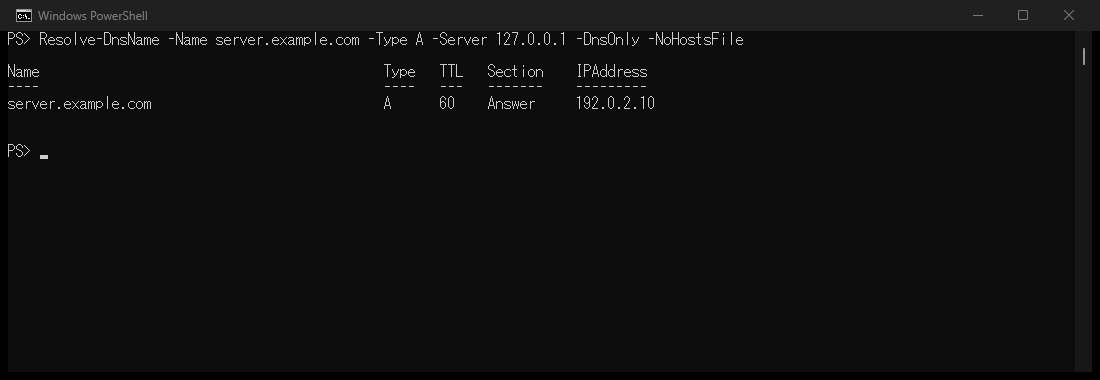
In the A record row, IPAddress is the IPv4 address returned by the selected DNS server. Keep Name and Type the same when comparing replies from different servers.
This selects the destination of this query. It does not change the PC’s system-wide DNS settings. Internal names may be available only through internal DNS, so querying an external resolver need not produce the same answer.
Use the result to choose the next check
- An address is returned: check that it is the expected destination, then test the service’s TCP port.
- The name is not found: check its spelling and whether it is intended for public or internal DNS.
- The query times out: check access to the resolver and whether a required VPN is connected.
A DNS answer and a successful SSH or web connection are separate results. After checking name resolution, use Test-NetConnection to test the relevant TCP port. Accessing a website directly by IP address also changes hostname-dependent routing and certificate checks, so that comparison alone cannot establish a DNS fault.
References
-
Previous article

Counting characters in JavaScript: length, Array.from and Intl.Segmenter 2026.10.04
-
Next article

Test TCP ports on Windows with Test-NetConnection 2026.10.04