Change a Git remote URL after moving a repository
- Published: 2026.10.04
- Updated: 2026.10.04
- Development Technology

After a remote repository is moved, an existing local clone still points to the old URL. Update that clone’s remote configuration to use the new location; recloning is not normally necessary just to change the URL.
The examples use an origin remote moving from https://before.example.com/test.git to https://after.example.com/test.git. Replace these illustrative addresses with the actual repository URLs.
Check the current fetch and push URLs
Run the commands inside the local repository you want to update:
git remote -v
git remote get-url origin
git remote get-url --push origin
A typical old configuration looks like this:
origin  https://before.example.com/test.git (fetch)
origin  https://before.example.com/test.git (push)
Record the current URLs before changing them. A remote name other than origin is valid; use the name shown for your repository.
Set the new URL
git remote set-url origin https://after.example.com/test.git
git remote -v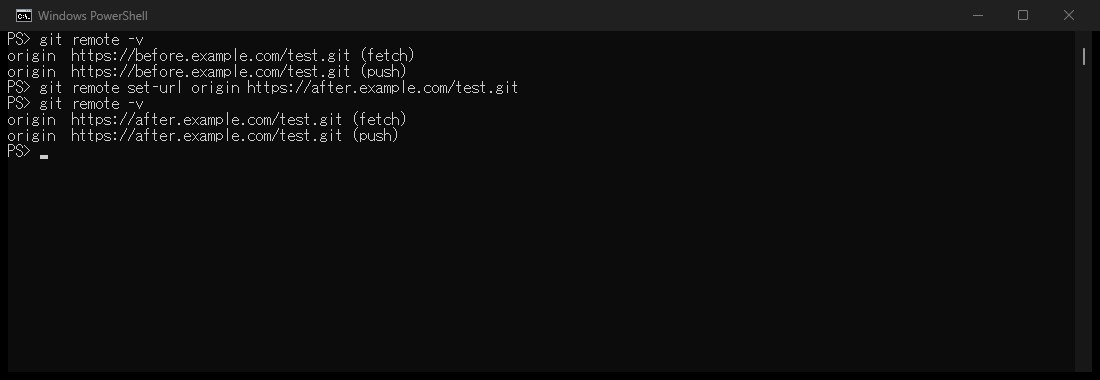
Comparing git remote -v before and after set-url shows both fetch and push using the new URL. If a separate push URL is configured, inspect that setting independently.
For the ordinary configuration with one URL and no separate push URL, both fetch and push now use the new address. The command changes local remote configuration; it does not copy the old repository to the new server or send a push.
If you intentionally configured several URLs or a separate push URL, inspect them explicitly:
git remote get-url --all origin
git remote get-url --push --all origin
Change a separate push URL
Where a separate push URL is already part of your setup, the --push option targets it:
git remote set-url --push origin https://after.example.com/test.git
git remote get-url --push --all origin
The fetch and push URLs of a single remote should represent the same repository. If you fetch from an upstream repository and publish to a different repository, use separate remotes rather than treating unrelated repositories as the fetch and push addresses of one remote.
Verify access to the destination
git ls-remote originThis contacts the destination to list its advertised references. Successful access is separate from changing the saved URL, and it does not prove that the migration copied every reference correctly. Check the destination’s branches and tags against your migration requirements before relying on it.
If access fails, check the new URL and the destination’s authentication requirements. Do not put credentials into an example URL or a shared command transcript.
Restore the recorded URL if needed
git remote set-url origin https://before.example.com/test.gitIf there was a separate push URL, restore that recorded setting separately too. Apply the same configuration check to each local clone that needs to follow the move.
Reference
Git’s git-remote manual documents get-url, set-url, multiple URLs, and separate push URLs.
-
Previous article

Windows SSH config not applied? Inspect it with ssh -G 2026.10.04
-
Next article

Fix a long DKIM TXT value in Amazon Route 53 2026.10.04